
 Setting up apparatus
 Video capture & tracking
 Observing behaviour
 Connecting equipment
 Automating complex tests
 Running tests
 Results
 Visualising data
 Analysis
 Transferring data
 Open field
 Water-maze
 Y-maze
 Fear conditioning
 Novel object
 Barnes maze
 Radial arm maze
 Light/dark box
 Operant conditioning
 Zebrafish
 Computers
 Multifunction remote
 Accessories
 Digital interface
 Optogenetic interface
 Synchronisation interface
 Relay interface
 Audio interface
 Touch interface
 Analogue interface
 USB TTL cable
 Animal shocker
 Components
 Place preference
 ANY-box
 T-maze
 Zero maze
 Hole board
 Sociability cage
 OPAD
OPAD RAPC
RAPC Waterwheel forced swim test
 Thermal gradient ring
 Operon
 Activity Wheel
 Full ANY-maze licence
 Other licence types
 Developing countries licence
 Contact support
 Support Policy
 FAQs
FAQs Guides
 Downloads
 Send us files
 Activate a licence ID
 Documentation
 Contact us
 Blog
Blog About
About Testimonials
 Privacy Policy
You can re-track any test as long as you have a recorded video of that test.
Re-tracking a test will simply replace the tracking data. It will not replace any I/O or Keys data, which is favorable if you ran your tests with I/O, as you’d most likely want to keep this real-time I/O data preserved.
To re-track a test:
- Open your ANY-maze experiment file and navigate to the Tests page.
- Find the test number in question and select the drop-down arrow next to “Completed”. Select “Mark this test to be re-tracked from the test’s video”. Note: Be careful to not select the “re-perform” option if your tests contain I/O or Keys data, as this will overwrite the I/O and key-scored data for the test, too.
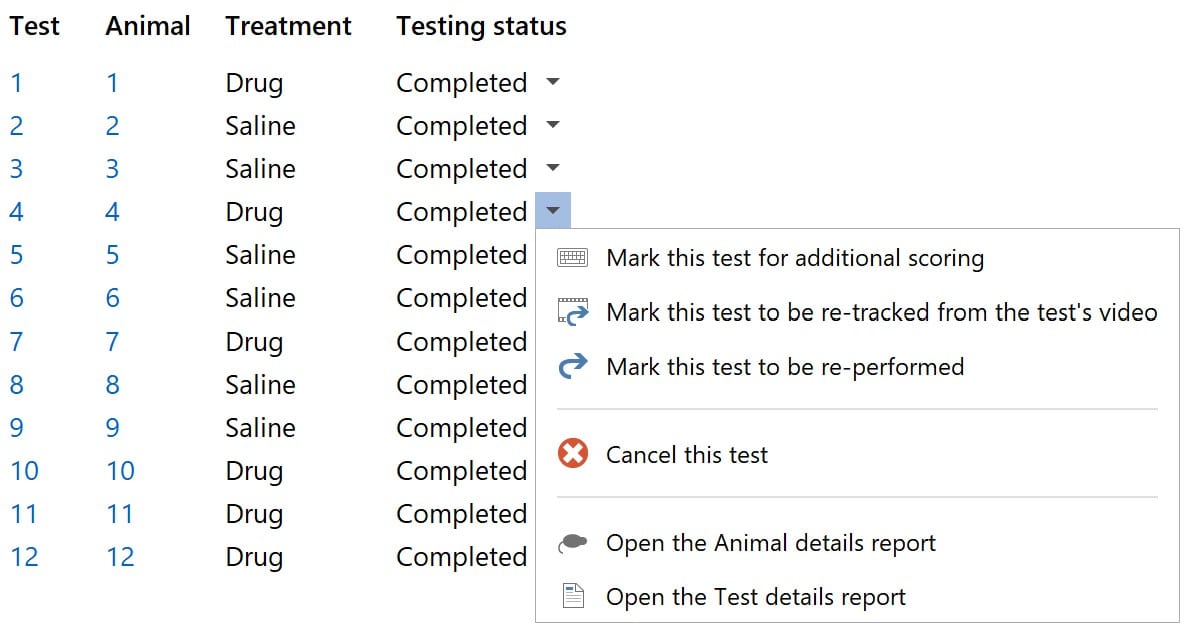
3. ANY-maze will automatically load the video of your test. However, if you see a message stating that ANY-maze cannot find the video, this means the video file has been moved from its original location on the computer. To correct this, click on the test number in the Test schedule. At the top of the page, click Related reports > Test video. Read the contents on this page and click the hyperlink to identify the file’s new location.
4. Finally, click the Start test button to re-track the test. ANY-maze will automatically start the test at the time in the video that it was originally started.
If you have any questions or concerns, please write to us at [email protected] and we’ll be happy to help you.